As a continuation of our series on Bluetooth beacons (check out our guide to Bluetooth beacon technology and our Eddystone tutorial using the Silicon Labs BG22), today we'll be covering Google's Eddystone standard in more detail along with implementation using Zephyr RTOS and the nRF52.
The Eddystone standard was released as an alternative and competitor to Apple's iBeacon standard. It provides similar functionality to iBeacon, but also goes a step beyond and adds some unique features.
With Eddystone, you can still build similar functionality to include two levels of hierarchy. This includes a 16-byte Beacon ID which is composed of a 10-byte namespace and a 6-byte instance.
Eddystone provides four frame types:
- Eddystone-UID: this type is similar to iBeacon's UUID + Major + Minor setup. It defines a 16-byte Beacon ID composed of a 10-byte namespace and a 6-byte instance. For example, the namespace could define a nationwide retailer's ID for its stores and the instance would refer to each store uniquely.
- Eddystone-URL: this type provides a way to broadcast a URL to be discovered by a Bluetooth LE scanner device, which in turn could navigate to the URL and present the webpage to the user.
- Eddystone-TLM: this type provides telemetry information about the device such as battery level, temperature and a running counter of advertised packets.
- Eddystone-EID: this type provides a framework for attaining a certain level of security and privacy of a device. EID stands for Ephemeral ID, which is an identifier that changes periodically at a rate determined during the deployment phase by registering it with a trusted web service.
NOTE: Even though Google has pretty much abandoned the Eddystone standard on smartphones (specifically Android and Chrome), it can still serve as a good format for applications where you control both sides (broadcaster devices + scanner devices) and that do not depend on smartphone apps. It also serves as a great exercise for learning more about how Bluetooth advertisements work and how to utilize them for your own application.
In this tutorial, we'll focus on Eddystone-UID and Eddystone-URL frame types.
Here's what we'll cover today:
- Eddystone Format
- Service Data
- Eddystone-UID
- Eddystone-URL
- Eddystone-TLM and Eddystone-EID
- Implementing Eddystone on nRF52 using Zephyr RTOS
- Eddystone-UID Example
- Take your Bluetooth LE knowledge to the next level
Eddystone Format
In order to better understand how Eddystone broadcasting devices work, we need to look at the details of the advertising packets involved. Here's what the format of an Eddystone advertisement packet looks like:
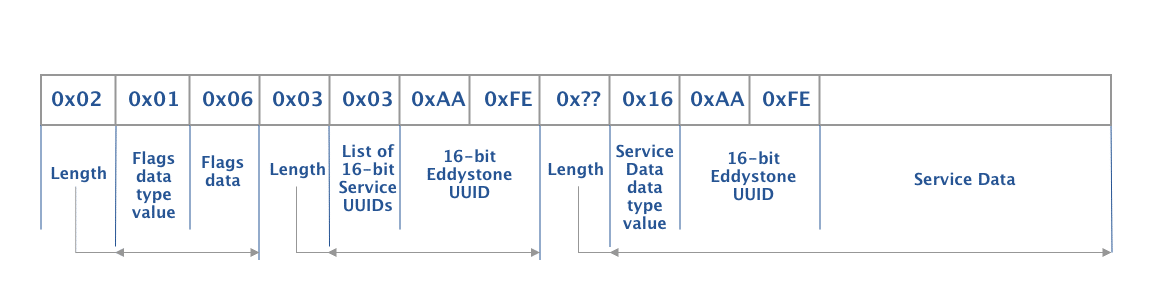
The part shown in the figure above is constant for all Eddystone advertisement packets, except for the Service Data portion.
Advertisement data follows the format Length-Type-Value (similar to the popular TLV format). The Length value indicates the length of the data that includes both the Type and the Payload.
The Eddystone standard utilizes the Service Data Advertisement data type to send the data to the Bluetooth LE scanner devices. iBeacon, on the other hand, utilizes the Manufacturer Data Advertisement data type.
Now, let's look at the Service Data portion which includes the information we're interested in parsing at the receiver end.
Service Data
The Service Data portion format depends on the frame type used (Eddystone-UID, Eddystone-URL, Eddystone-TLM, or Eddystone-EID).
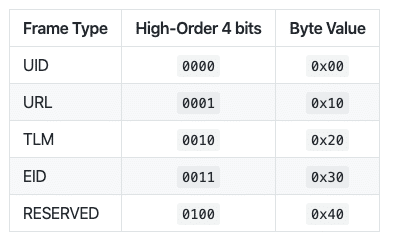
The first byte of the Service Data field always includes the frame type, which is defined as following:
Eddystone-UID
As we mentioned earlier, this frame type is used in a similar way as Apple's iBeacon. It includes the following:
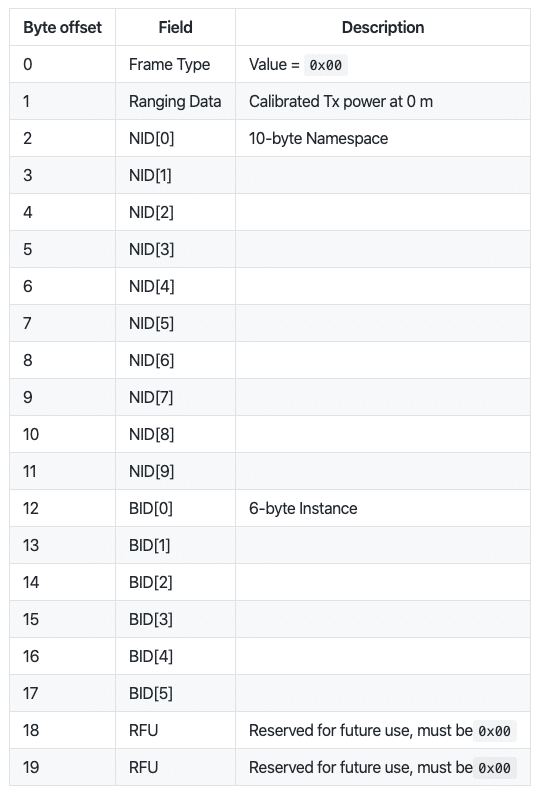
When using this frame type, we can utilize the 10-byte namespace for a unique ID of our choice (e.g. to indicate a specific store identifier), and then use the 6-byte as an identification of a subset of the namespace (e.g. to identify an aisle within the store).
Notes:
- This frame type utilizes the maximum 31 bytes of advertisement data available in a Bluetooth LE (primary) advertisement packet.
- The Ranging Data field is the Tx power measured at 0 meters from the transmitter (-100 dBm to +20 dBm).
Per the Eddystone specification, the best way to determine the value to include in this field is to measure the actual RSSI at 1 meter and then add 41 dBm to the value (based on the assumption that 41 dBm is the signal loss that occurs over 1 meter). - For more information and recommendations on the generation of the namespace ID and instance ID, refer to the Eddystone specification here.
Important Note: The Tx power value uses a two’s complement format to represent signed values. For more information on this calculation, refer to the Two’s Complement section on Wikipedia.
Eddystone-URL
The Eddystone-URL frame type is unique and different from the use of the Eddystone-UID or Apple's iBeacon format. It is used to advertise a URL for the scanner to discover and parse, then potentially point a web browser to.
This frame type is primarily used in "Physical Web" applications and implementations.
Since the maximum Bluetooth LE advertisement data length is 31 bytes, this limits the URLs that can be broadcast using this frame type. However, the format provides some level of compressed encoding to make the most of the limited space available for the advertisement data.
Here's the format used for this frame type:
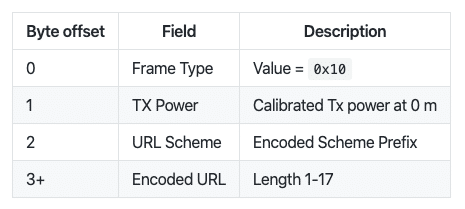
The Tx power value is represented in the same way we described in the Eddystone-UID section above.
The URL scheme is defined as follows:
- Different prefixes for URLs are represented as follows:
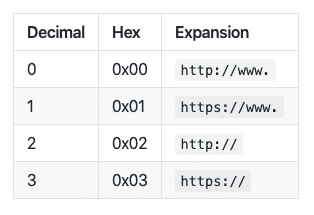
- The main portion of the URL is then included as a sequence of characters. For example, "google" would be represented as a sequence of 'g' 'o' 'o' 'g' 'l' 'e', which would be converted to their ASCII values.
- Finally, the URL expansion (e.g. .com/ or .com) is represented as follows:
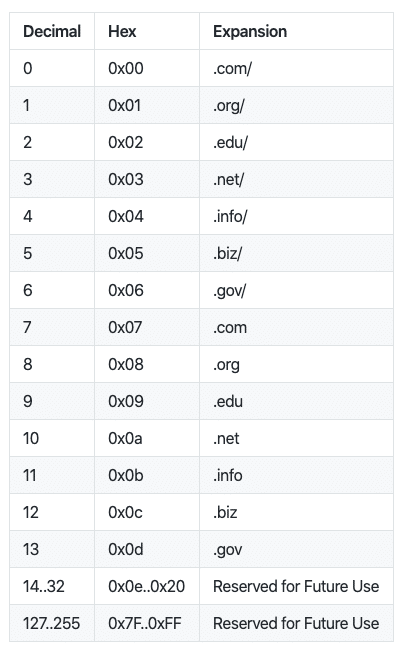
For example, if we wanted to represent "https://www.google.com/" with a Tx power of 0 dBm, the Service Data array would look like this:
| Frame Type (URL) | Tx power | https://www. | g | o | o | g | l | e | .com/ |
| 0x10 | 0x00 | 0x01 | 0x67 | 0x6f | 0x6f | 0x67 | 0x6c | 0x65 | 0x00 |
Example Eddystone-URL Service Data field value
Eddystone-TLM and Eddystone-EID
Eddystone-TLM frames are used for broadcasting telemetry data useful for monitoring the health of beacons in the field. This frame does not contain any identifier, so it is paired with either Eddystone-URL, Eddystone-UID, or Eddystone-EID frames.
When paired with EID frames, the Eddystone-TLM packet is encrypted. When paired with URL or UID frames, however, the TLM packets are unencrypted.
To learn more about these types, refer to the following links:
- Eddystone-EID specification
- Eddystone-TLM specification
- Unencrypted TLM specification
- Encrypted TLM specification
Implementing Eddystone on nRF52 using Zephyr RTOS
For the practical part of this tutorial, we'll be using:
- An nRF52840 development kit (you could use any Zephyr-supported board, but you'll have to change the board type in the build command arguments).
- Zephyr RTOS.
- Smartphone with a Bluetooth LE scanner app – we'll be using nRF Connect for iOS.
Note: If you have not worked with Zephyr before, then check out my previous post on Getting Started with Bluetooth LE development in Zephyr.
Zephyr already provides an example of setting up an Eddystone-URL advertisement, so we'll be using this as our starting point.
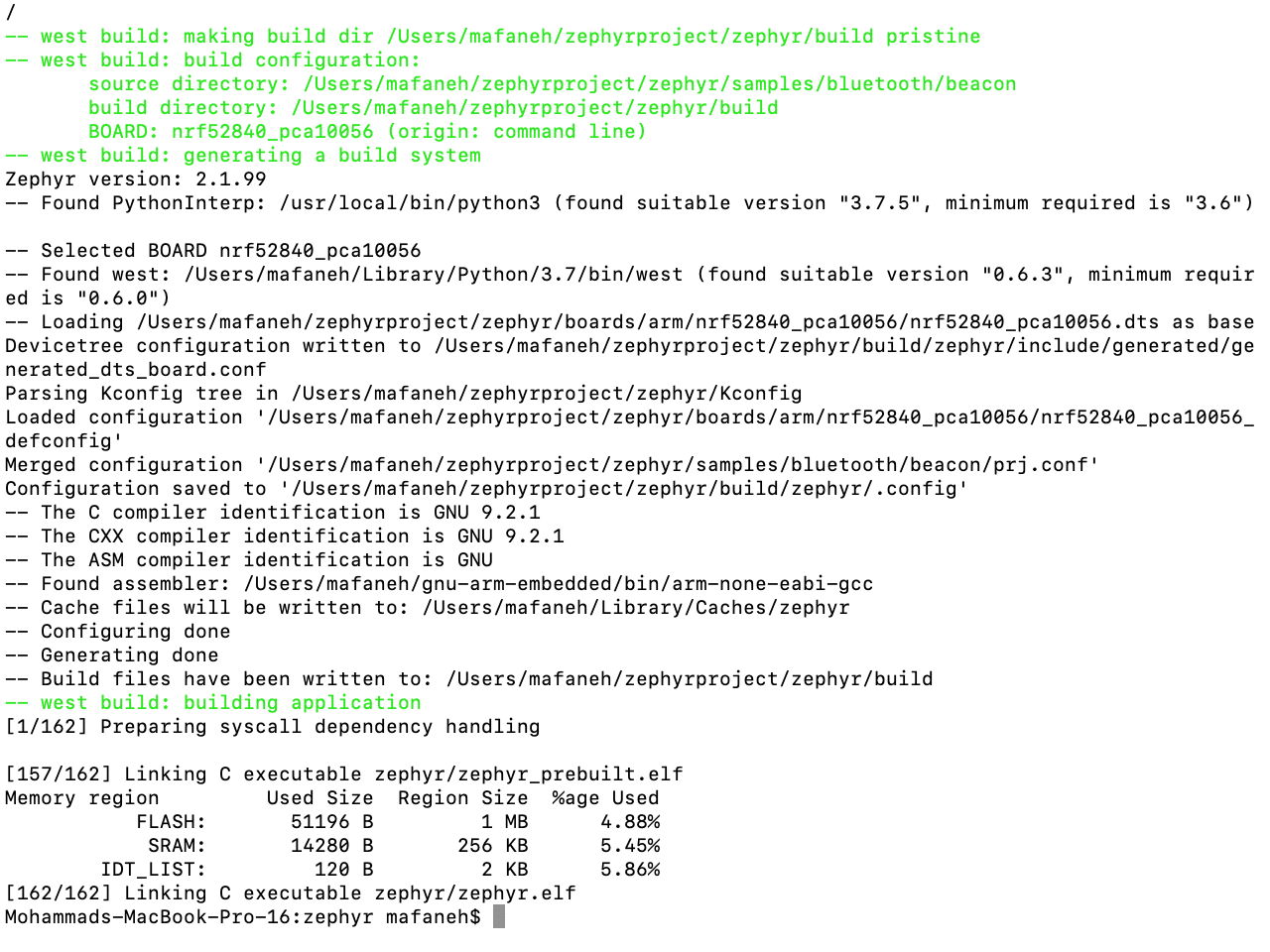
The example is located at <Zephyr root folder>/zephyr/samples/bluetooth/beacon. To build the example, navigate to the <Zephyr root folder>/zephyr/ folder, then run the following:
$ west build -p auto -b nrf52840_pca10056 samples/bluetooth/beaconOutput:
Let's take a look at the example's source code first before we flash and run it on the development board.
main.c:
/* main.c - Application main entry point */
/*
 * Copyright (c) 2015-2016 Intel Corporation
 *
 * SPDX-License-Identifier: Apache-2.0
 */
#include <zephyr/types.h>
#include <stddef.h>
#include <sys/printk.h>
#include <sys/util.h>
#include <bluetooth/bluetooth.h>
#include <bluetooth/hci.h>

#define DEVICE_NAME CONFIG_BT_DEVICE_NAME
#define DEVICE_NAME_LEN (sizeof(DEVICE_NAME) - 1)

/*
 * Set Advertisement data. Based on the Eddystone specification:
 * https://github.com/google/eddystone/blob/master/protocol-specification.md
 * https://github.com/google/eddystone/tree/master/eddystone-url
 */
static const struct bt_data ad[] = {
	BT_DATA_BYTES(BT_DATA_FLAGS, BT_LE_AD_NO_BREDR),
	BT_DATA_BYTES(BT_DATA_UUID16_ALL, 0xaa, 0xfe),
	BT_DATA_BYTES(BT_DATA_SVC_DATA16,
		      0xaa, 0xfe, /* Eddystone UUID */
		      0x10, /* Eddystone-URL frame type */
		      0x00, /* Calibrated Tx power at 0m */
		      0x00, /* URL Scheme Prefix http://www. */
		      'z', 'e', 'p', 'h', 'y', 'r',
		      'p', 'r', 'o', 'j', 'e', 'c', 't',
		      0x08) /* .org */
};

/* Set Scan Response data */
static const struct bt_data sd[] = {
	BT_DATA(BT_DATA_NAME_COMPLETE, DEVICE_NAME, DEVICE_NAME_LEN),
};

static void bt_ready(int err)
{
	if (err) {
		printk("Bluetooth init failed (err %d)\n", err);
		return;
	}

	printk("Bluetooth initialized\n");

	/* Start advertising */
	err = bt_le_adv_start(BT_LE_ADV_NCONN, ad, ARRAY_SIZE(ad),
			      sd, ARRAY_SIZE(sd));
	if (err) {
		printk("Advertising failed to start (err %d)\n", err);
		return;
	}

	printk("Beacon started\n");
}

void main(void)
{
	int err;

	printk("Starting Beacon Demo\n");

	/* Initialize the Bluetooth Subsystem */
	err = bt_enable(bt_ready);
	if (err) {
		printk("Bluetooth init failed (err %d)\n", err);
	}
}
As you can see, the code is very simple. Let's change the URL to "https://www.google.com/" to match our example in the previous section.
/*
 * Set Advertisement data. Based on the Eddystone specification:
 * https://github.com/google/eddystone/blob/master/protocol-specification.md
 * https://github.com/google/eddystone/tree/master/eddystone-url
 */
static const struct bt_data ad[] = {
	BT_DATA_BYTES(BT_DATA_FLAGS, BT_LE_AD_NO_BREDR),
	BT_DATA_BYTES(BT_DATA_UUID16_ALL, 0xaa, 0xfe),
	BT_DATA_BYTES(BT_DATA_SVC_DATA16,
		      0xaa, 0xfe, /* Eddystone UUID */
		      0x10, /* Eddystone-URL frame type */
		      0x00, /* Calibrated Tx power at 0m */
		      0x01, /* URL Scheme Prefix https://www. */
		      'g', 'o', 'o', 'g', 'l', 'e',
		      0x00) /* .com/ */
};
Now, that we have made some changes, we need to rebuild the application. Again, run:
$ west build -p auto -b nrf52840_pca10056 samples/bluetooth/beaconWe can now run nRF Connect (iOS, Android, or Desktop) to confirm the changes:
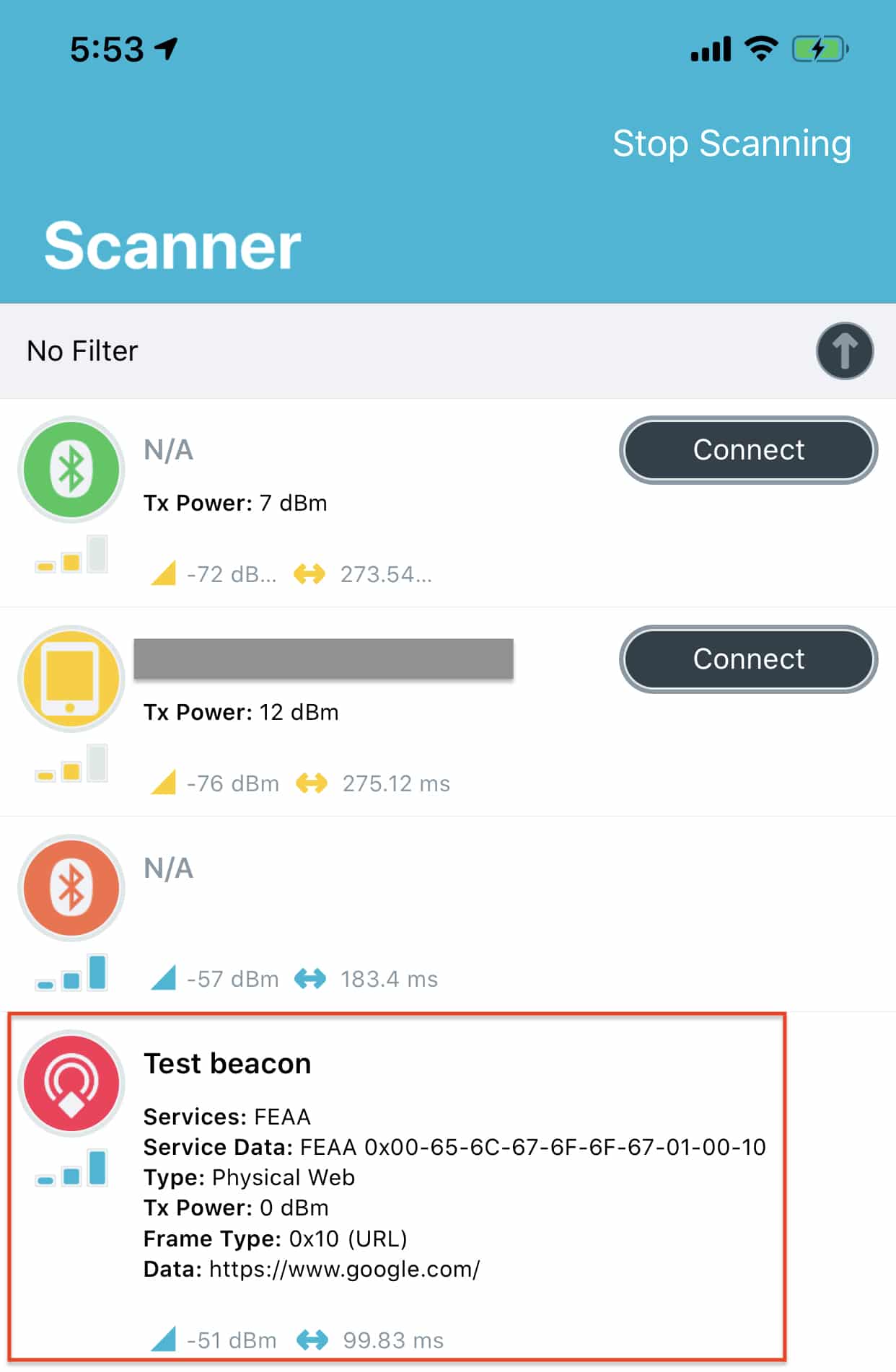
As you can see, the URL matches exactly what we updated it to be.
Also, the Type detected is "Physical Web" and the Frame Type is 0x10 (URL). The device name "Test beacon" is set in the prj.conf file:
CONFIG_BT=y
CONFIG_BT_DEBUG_LOG=y
CONFIG_BT_DEVICE_NAME="Test beacon"
Eddystone-UID Example
Let's go ahead and update the example to transmit a UID frame type instead of URL:
/*
 * Set Advertisement data. Based on the Eddystone specification:
 * https://github.com/google/eddystone/blob/master/protocol-specification.md
 * https://github.com/google/eddystone/tree/master/eddystone-url
 */
static const struct bt_data ad[] = {
	BT_DATA_BYTES(BT_DATA_FLAGS, BT_LE_AD_NO_BREDR),
	BT_DATA_BYTES(BT_DATA_UUID16_ALL, 0xaa, 0xfe),
	BT_DATA_BYTES(BT_DATA_SVC_DATA16,
		      0xaa, 0xfe, /* Eddystone UUID */
		      0x00, /* Eddystone-UID frame type */
		      0x00, /* Calibrated Tx power at 0m */
		      0x00, 0x01, 0x02, 0x03, 0x04, 0x05, 0x06, 0x07, 0x08, 0x09, /* 10-byte Namespace */
		      0x0a, 0x0b, 0x0c, 0x0d, 0x0e, 0x0f) /* 6-byte Instance */
};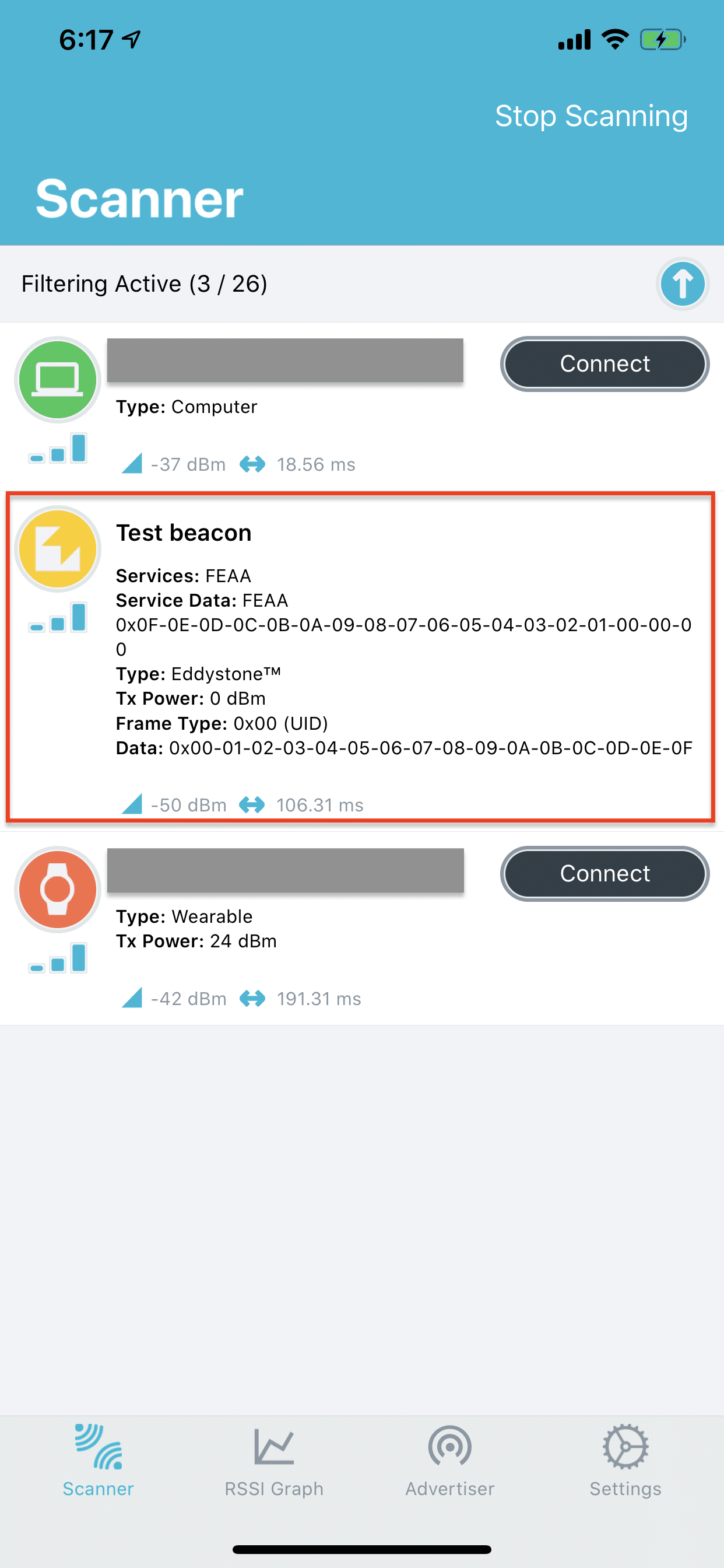
As you can see, the Type detected is "Eddystone" and the Frame Type is 0x00 (UID).
Summary
In this tutorial, we covered Google's Eddystone beacon standard and built a working implementation using Zephyr RTOS and the nRF52. Here's what we went through:
- The Eddystone advertisement packet format and how it uses the Service Data AD type
- Eddystone-UID frame type — a 16-byte Beacon ID with namespace and instance
- Eddystone-URL frame type — compressed URL broadcasting for Physical Web applications
- Eddystone-TLM and Eddystone-EID for telemetry and security
- A hands-on Zephyr implementation with both URL and UID examples on the nRF52840
You should now be able to set up your own Eddystone beacons using Zephyr and customize them for your specific use case.
If you're looking to take your beacon development further — including building a combined iBeacon + Eddystone broadcaster and a Bluetooth LE scanner that parses advertisement data at the byte level — here's a preview of what that looks like: