


Disclosure: Novel Bits is a US distributor of the BleuIO dongles featured in this post.
If you develop Bluetooth LE firmware, there’s a good chance your test procedure looks something like this: flash the build, pick up your phone, open nRF Connect, scan, find your device in a list of every fitness tracker and TV in range, tap connect, tap through service discovery, enable notifications, and eyeball the results.
It works. I’ve done it thousands of times, and nRF Connect is a genuinely great tool. But the tenth time you run that same sequence in one afternoon, a question starts to nag: why is a human tapping a touchscreen part of my test procedure at all?
In this post, we’ll look at what a phone actually costs you as a test counterpart, and at a different approach: a scriptable Bluetooth LE endpoint you drive from a terminal. Every step becomes a command you can type, save, and replay, which means every step becomes something you can automate. This is the first post in a series on automating Bluetooth LE testing, and by the end of it you’ll have seen a complete scan, advertise, connect, and disconnect cycle with no phone involved.
Where a phone stops being the right instrument
Let’s be precise, because “manual testing is tedious” isn’t the real issue. A phone is the right instrument for the question “does this work for my users?” It is the wrong instrument for the question “did this commit break anything?” Those are two different jobs, and it’s the second one where the phone fights you. A few specific ways that bites:
You can’t put the phone in your build pipeline. nRF Connect for Android has a macro recorder and even an automated-test mode, and both are useful. But the run still lives on a phone: results land on the handset instead of in your build system, there’s no exit code to gate a merge on, and running the suite against every firmware build means a phone farm and someone to mind it.
The OS is making decisions you can’t see. Mobile operating systems throttle scanning, cache GATT databases, and manage connection parameters on their own schedule. When your device’s name doesn’t update in a scan list, is that your advertising data or the phone’s cache? When service discovery shows stale characteristics, is that your GATT table or a cached one? You end up debugging the phone’s behavior instead of your device’s. None of that is a flaw. The OS is protecting battery life and behaving like the consumer device your users own. But in a regression run it means the phone is reporting on itself as well as on your device, and its output alone won’t tell you which.
A human eyeballing a screen is not a test result. “Looks right” doesn’t produce an exit code, can’t run unattended on every commit, and can’t tell you which firmware change broke reconnection.
None of this means the phone leaves your bench. Your product presumably has to work with phones, so phone testing stays. But for the repetitive protocol-level work (does it advertise, does it accept a connection, does it serve the right data), you want a counterpart that does exactly what you tell it, every time, and tells you exactly what it saw.
One limit, up front. A dongle is not a stand-in for a phone. It runs a different host stack, with its own policies for connection parameters, MTU, GATT caching and which PHYs it will use. A suite that passes against a dongle tells you the protocol behavior it asserts is still there. It does not tell you a particular handset will connect, stay connected, or render your service the way you expect. Dongles answer did anything regress, on every build, unattended. Phones answer does this work in the field, and that answer needs real handsets before a release.
What a scriptable endpoint looks like
The counterpart you want has a short list of requirements:
- It speaks real Bluetooth LE over the air
- It’s driven by plain text commands rather than a touchscreen
- It reports what it observes as plain text you can parse
- It’s cheap enough to keep two of them permanently plugged into your bench
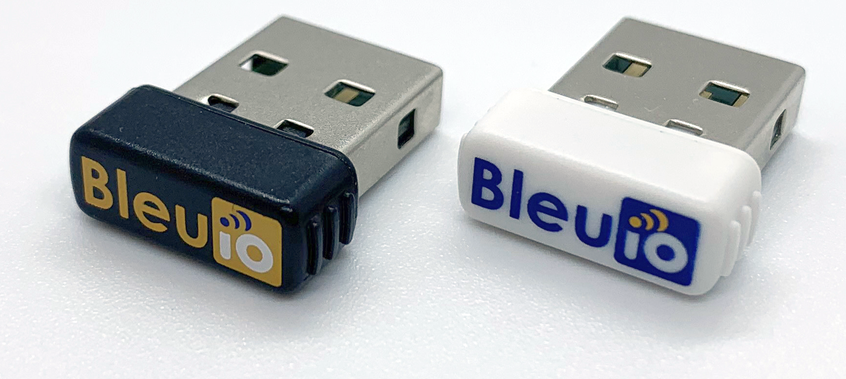
The device I use for this is the BleuIO, a USB dongle from Smart Sensor Devices built around the Renesas DA14683. What makes it interesting for testing isn’t the radio (plenty of dongles have radios). It’s the interface: the BleuIO shows up as a plain USB serial port and is driven entirely by AT commands, the same command-and-response style you may know from cellular modems.
Plug it in, open the serial port (115200 baud, commands terminated with a carriage return), and ask it to identify itself:
ATI
Smart Sensor Devices
DA14683 (W25Q80EW)
BleuIO
Firmware Version: 2.7.9.78
Dual role
Not Connected
Not Advertising
That one response already tells you the three things that matter about the dongle’s state: its role (dual, meaning it can act as either side of a connection), whether it’s connected, and whether it’s advertising. Every terminal capture in this post comes from firmware 2.7.9.78; if you’re on a different version, some output details may differ.
The dongle’s behavior is also modal. It’s in a peripheral, central, or dual role at any given time, and switching roles stops advertising and drops connections. That sounds like a limitation, but for testing it’s actually a feature: the dongle is only ever doing what you told it to do, which is exactly the property you want from a test counterpart, and one thing a consumer OS is not built to offer.
Your first scripted scan
Let’s start on the observing side. To scan, the dongle needs to be in central (or dual) role:
AT+CENTRAL
OK
Then a five second scan is one command:
AT+GAPSCAN=5
SCANNING...

[01] Device: [1]F3:33:72:XX:XX:XX  RSSI: -75
[02] Device: [1]55:F2:72:C6:B7:58  RSSI: -24
[03] Device: [1]7D:25:91:57:7E:A2  RSSI: -24
[04] Device: [0]60:98:66:XX:XX:XX  RSSI: -59
[04] Device: [0]60:98:66:XX:XX:XX  RSSI: -60 (S0a4d…)
...
SCAN COMPLETE
(Output trimmed, and two addresses are masked for privacy. A real office scan finds a lot of devices.)
This looks like what nRF Connect shows you, and that’s the point. The
difference is in what it is: text on a serial port. The
[1] prefix tells you the address type (random, versus
[0] for public), the RSSI is right there, and a device that
advertises a name shows it in parentheses. You can pipe this into
grep. You can assert on it in a Python script. You can diff
today’s scan against yesterday’s.
The other side of the link: advertising as a peripheral
Now the other side. Put a dongle in peripheral role and start advertising:
AT+PERIPHERAL
OK
AT+ADVSTART
Advertising type: GAP_CONN_MODE_UNDIRECTED Advertising interval minimum: 1100 maximum: 1100
ADVERTISING...
Two things in that response are worth a closer look.
First, the advertising mode: GAP_CONN_MODE_UNDIRECTED
means connectable undirected advertising, so anything
scanning nearby (including a phone) can find it and connect to it. The
default interval of 1100 units works out to 687.5 ms (advertising
intervals are expressed in units of 0.625 ms).
Second, notice what’s missing from that advertising packet: a device name. (Some scanners will still show one, “BleuIO”, because the dongle ships a default scan response carrying it; we’ll see both packets side by side in a moment.)
The name lives in the advertising data, not in the device name
This trips up almost everyone the first time. The BleuIO has an AT+DEVICENAME command, and it does
set a name: the GATT Device Name characteristic, which
a peer can read after connecting. The name that shows up in a
scan list is a different thing entirely. It’s the Complete Local
Name field (AD type 0x09) carried over the air, in
the advertising data or the scan response, and if neither packet carries
a name field, a scanner has nothing to show.
On the BleuIO, you set the advertising payload directly with
AT+ADVDATA, byte by byte. Here’s the name “SENSOR” (each
field is length, type, then the payload bytes, so 07 =
seven bytes follow, 09 = Complete Local Name, then
S-E-N-S-O-R in ASCII):
AT+ADVDATA=07:09:53:45:4E:53:4F:52
OK
ADVERTISING DATA: 070953454E534F52
Now let’s watch it arrive over the air. On the scanning dongle, we’ll
use AT+SCANTARGET to follow this one device, with one
switch flipped first: targeted scans report raw bytes only unless you
ask the dongle to decode names for you (ATASSN1 turns that
on). I know this because my first run of this exact sequence showed the
right bytes and no name, which is the kind of thing you find out
immediately when your test counterpart shows you raw packets instead of
a polished list:
ATASSN1
Always Show Scan Name On!

AT+SCANTARGET=[0]40:48:FD:EA:E4:88=3
SCANNING TARGET DEVICE...

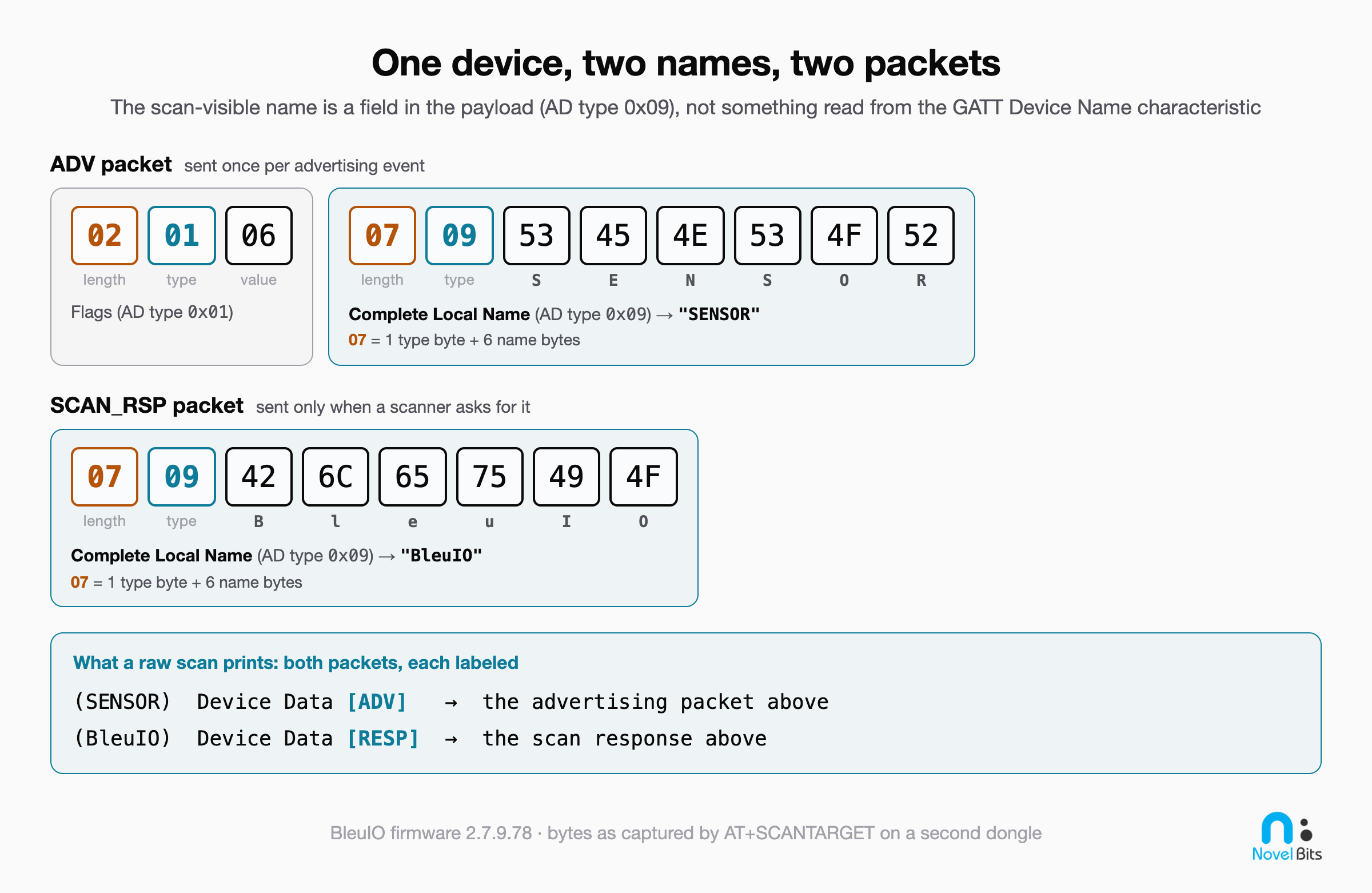
[40:48:FD:EA:E4:88] (SENSOR) Device Data [ADV]: 020106070953454E534F52
[40:48:FD:EA:E4:88] (BleuIO) Device Data [RESP]: 0709426C6575494F
...
SCAN COMPLETE
(The scan repeats that pair a few times; repeats trimmed.)
There’s our name, decoded from the advertising packet. And as a
bonus, this capture shows something you’d rarely notice on a phone: the
device is sending two different names.
(SENSOR) comes from the advertising packet we just built,
while (BleuIO) comes from the scan
response packet, a second payload the scanner requests
separately. A phone quietly merges these; the raw view shows you which
packet carried which bytes. When you’re debugging why a scanner shows
the wrong name, this distinction is usually the answer. The specification expects a device’s Local Name to be
consistent across these packets, so a product shipping two different
names, like our bench setup here, would be a conformance bug. The raw
view is how you catch it.
If you’ve ever “fixed” a naming bug by toggling Bluetooth off and on
until the phone’s cache gave up, you’ve felt this problem. Here, there’s
no cache. The scanner prints the bytes it received, and the bytes either
contain AD type 0x09 or they don’t.
Closing the loop: a connection with no phone in sight
We have one dongle advertising as SENSOR and one dongle in central
role. Let’s connect them. Each dongle will tell you its own address with
AT+GETMAC, so on the central, connect to the peripheral’s
address ([0] marks it as a public address):
AT+GAPCONNECT=[0]40:48:FD:EA:E4:88
Trying to connect...

CONNECTED.

handle_evt_gap_connected: conn_idx=0000 address=40:48:fd:ea:e4:88 CI max is 24.
Target conn indx changed to=0000
Peripheral exchanged tx data length is 251, rx data length is 251.
Peripheral updated CI min is 24, CI max is 24.
The dongle doesn’t just say “connected.” It reports the connection index, the negotiated connection interval (CI of 24 units means 30 ms, since the interval is in units of 1.25 ms), and the data length exchange, protocol details a phone either hides entirely (iOS) or buries in an app log (Android). (The full output continues with an MTU exchange and an automatic service discovery listing every handle on the peer, which we’ll put to work in the next post.)
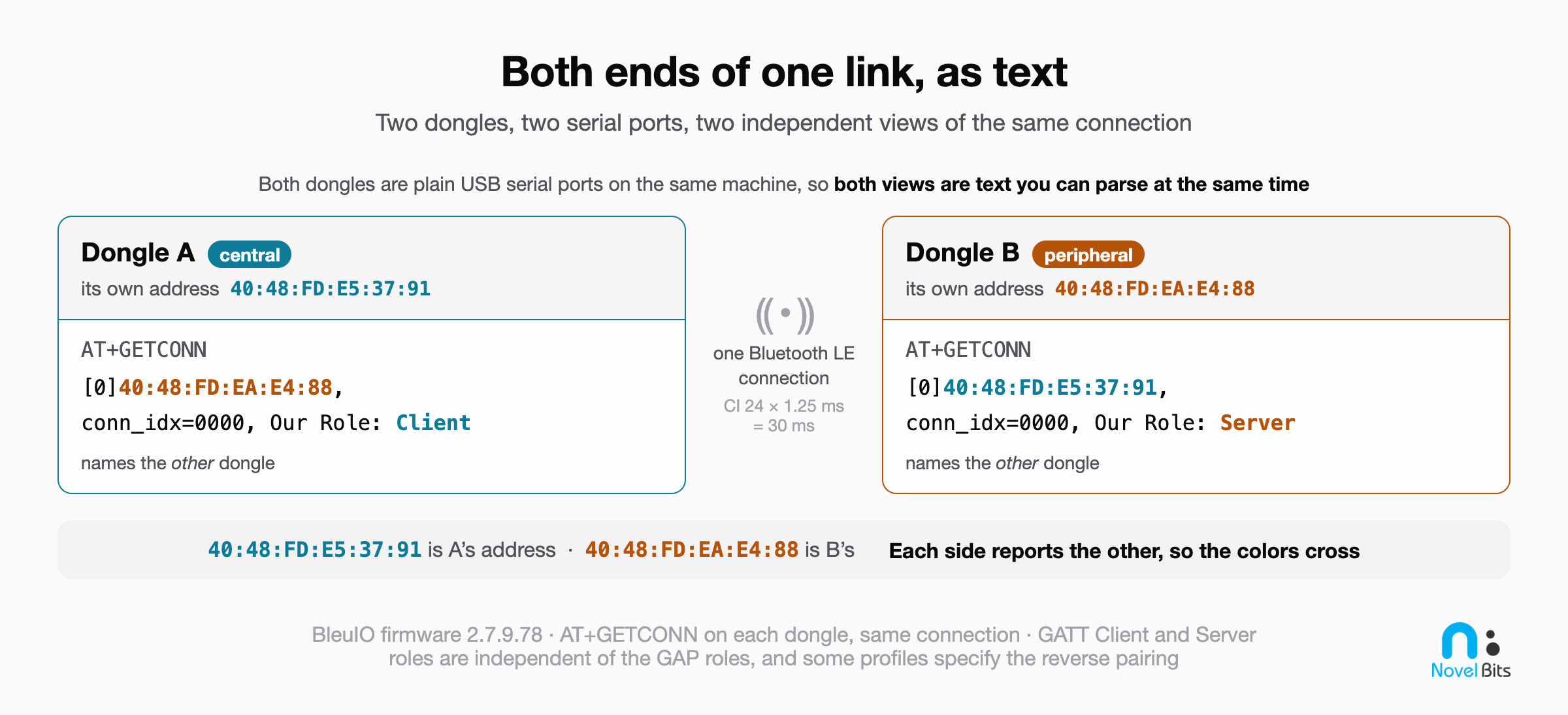
Now, here’s my favorite part of the two-dongle setup. Ask each side what it thinks is going on:
AT+GETCONN                          (on the central; trailing discovery output trimmed)
[0]40:48:FD:EA:E4:88, conn_idx=0000, Our Role: Client, bonded=false, paired=false
AT+GETCONN (on the peripheral)
[0]40:48:FD:E5:37:91, conn_idx=0000, Our Role: Server, bonded=false, paired=falseYou’re observing the same link from both ends at once: the central sees the peripheral’s address and calls itself the Client; the peripheral sees the central’s address and calls itself the Server. When something goes wrong in a real test (a dropped connection, a failed pairing), having both perspectives as parseable text is the difference between guessing and knowing which side did it.
Cleaning up is one more command:
AT+GAPDISCONNECT
handle_evt_gap_disconnected: conn_idx=0000 address=40:48:fd:ea:e4:88.
DISCONNECTED.
Step back and look at what just happened. A device advertised with a name we constructed byte by byte, a scanner verified it over the air, the two established a connection, both sides reported their view of the link, and it was torn down cleanly. Every step was a line of text in, lines of text out. No screen was tapped. Which means every step of it can live in a script, and a script can run it fifty times while you get coffee.
Try it yourself
If you have two BleuIO dongles (or one dongle and a phone for the
scanner side), here’s the whole session to replay. Any serial terminal
works (115200 baud, CR line ending), or
screen /dev/cu.usbmodem... on macOS and Linux:
ATI                                  check state
AT+CENTRAL                           dongle 1: central role
AT+GAPSCAN=5                         what's around you?
Then on the second dongle (if a role command answers
ERROR, the dongle is already in that role; carry on):
AT+GETMAC                            note this address
AT+PERIPHERAL
AT+ADVDATA=07:09:53:45:4E:53:4F:52   name it SENSOR
AT+ADVSTART
And back on the first:
AT+GAPSCAN=5                         find SENSOR in the list
AT+GAPCONNECT=[0]<address>           connect to it
AT+GETCONN                           confirm the link
AT+GAPDISCONNECT
As an exercise, change the advertised name to something of your own.
Remember the encoding: the length byte counts the type byte plus the
name characters, so “LAB1” is 05:09:4C:41:42:31. If the
name doesn’t show up in your scan, you’ll know right away which packet
to suspect, and it isn’t a cache.
Where this is going
In this post, we covered the case for taking the phone out of the loop for protocol-level testing:
- A phone answers “does this work for my users?” A scriptable endpoint answers “did this commit break anything?” Use each for the question it can actually answer.
- A scriptable endpoint like the BleuIO turns scan, advertise, connect, and disconnect into plain text commands and parseable responses.
- The scan-visible name lives in the advertising data (AD type
0x09), not in the GATT Device Name characteristic, and a raw scan view shows you which packet carries which name. - Two dongles give you both ends of a link as text, which is the foundation for real test automation.
- A dongle is not a phone simulator. A pass against one is not a pass against the other, which is why both stay on the bench.
With this, you should be able to stand up a controllable Bluetooth LE endpoint on your bench and run a complete connection cycle without touching a phone.
In the next post, we’ll turn this from an interactive session into an actual script: driving both dongles from Python, exchanging real data over the Serial Port Service, and dealing with the one error message that confuses almost everyone who automates this device (it involves notifications, and it’s not a bug).
You can get BleuIO dongles from the Novel Bits store (as a US distributor, we keep them in stock and ship domestically).


